
How to Build Your Survey
The automated survey software helps you build your survey in just three steps. After logging in to SurveyAnalytics.
1. Name Your Survey: each survey must have an identifying name by which it can be located and accessed.
2. Create
Your Survey: your survey can be created
(a) by writing and entering
your own questions one at a time,
(b) by loading a complete
survey template from the template library and then editing to meet your
needs,
(c) by loading individual questions from the template library
and then editing to meet your needs, or
(d) by a combination of
a,b,c... write a few questions yourself, add from the library, etc.
3. Take the
survey, View Data, and View Survey Properties.
(a) Take the Survey
tests the survey within the editor by allowing you to take the
survey.
(b) View Data completes an analysis of the data and
presents tabulations of individual or all questions.
Data can also be
graphed using horizontal and vertical bar charts, or pie charts.
(c)
View Survey Properties shows the URL for accessing the survey, as
well as the header and footer information.
Each of these options, along with the red tab for viewing and selecting templates, are found on the menu tabs of the build page.
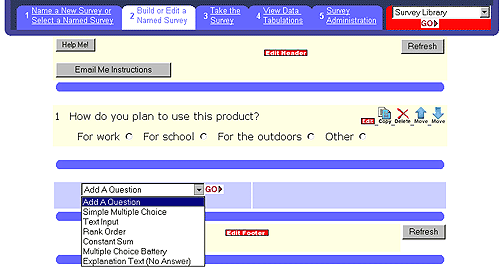
The Red tab at the upper right corner invokes a menu from which survey templates may be selected. Once selected, a page with drop-down menus will appear, from which entire surveys or individual questions may be selected. The "copy" button will automatically add the selected survey or questions into you survey build template.
When
finished adding and editing your questions, select tab 3 and Take the
Survey.
When your questions are finalized, branching may be
added by selecting the "Add Branching" button at the bottom of the
"Analyze Data" Tab (Tab 4) of the build menu. However we recommend
not using a branching survey if possible. Branching creates an
"opportunity for disruption" of the survey. Meaning that the
respondent suddenly sees a new page of survey questions. Respondents
often look at this new page and rationalize not completing the
survey because they are pressed for time, lack interest, or do not
know how many additional questions they have to answer. We
have observed discontinuation effects as high as 25% when a short first
page of the survey branches to a long second stage survey.
Data from the completed responses may be viewed by selecting tab 4.
Survey Properties, lists the URL or web address from which your survey can be taken.
 Print
Print
 Feedback

