You may also be interested in...
Step 1: Go to
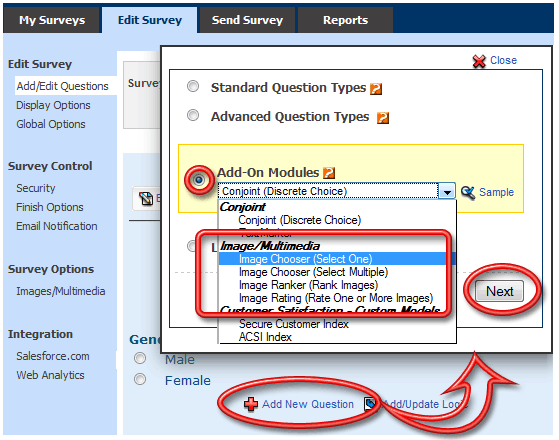
Click on the Add New Question link.
From Add-On Modules select the required Image/Multimedia question type and click on the Next button.
1. Screenshot
Step 2:
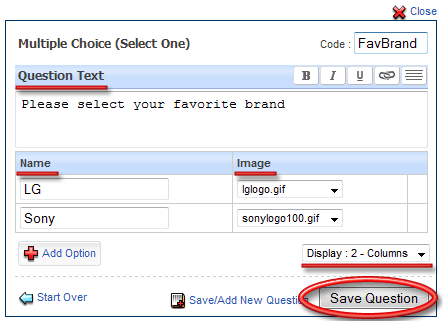
Question Text: Enter in the Question Text here.
Name: Enter in the Answer Option Text here.
Image: Select the Image from the drop menu.
Display - Column:Select Display - X Column option.
Click on Save Question to add the question.
2. Screenshot
On the survey the question will display as below:
3. Screenshot
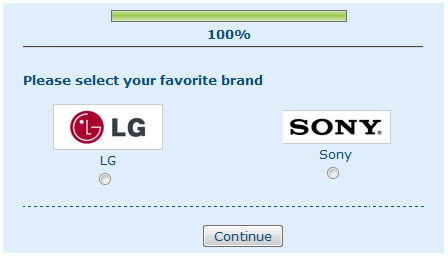
Image Chooser (Select One): Similar to Multiple Choice Single Select Question (Radio Button)
3. Screenshot
Image Chooser (Select Multiple): Similar to Multiple Choice Multiple Select Question (Check Box)
4. Screenshot
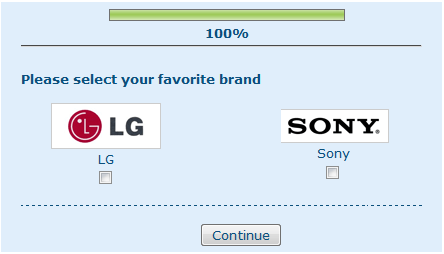
Image Ranker (Rank Images): Similar to Rank Order Question
5. Screenshot
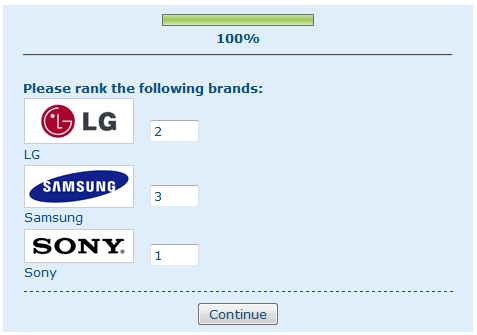
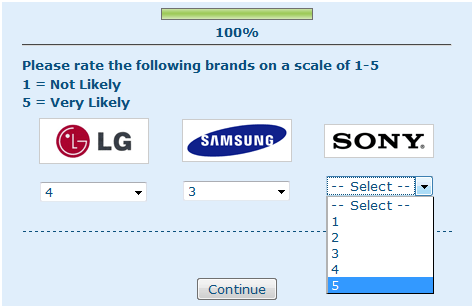
Image Rating (Rate one or more Images): Similar to Matrix Questions for rating one or more images.
6. Screenshot
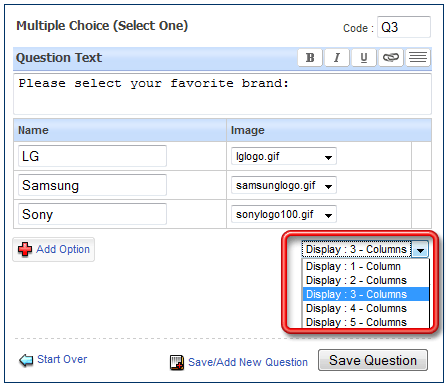
When adding/editing you can select from Display 1-Column to Display 5-Column options.
7. Screenshot