 Back
Back Print
Print Feedback
You may also be interested in...

Go To:
The Excel file will be emailed to the email address specified under your User Profile (as an attachment). You can also download it from the Download Center page.
1. Screenshot
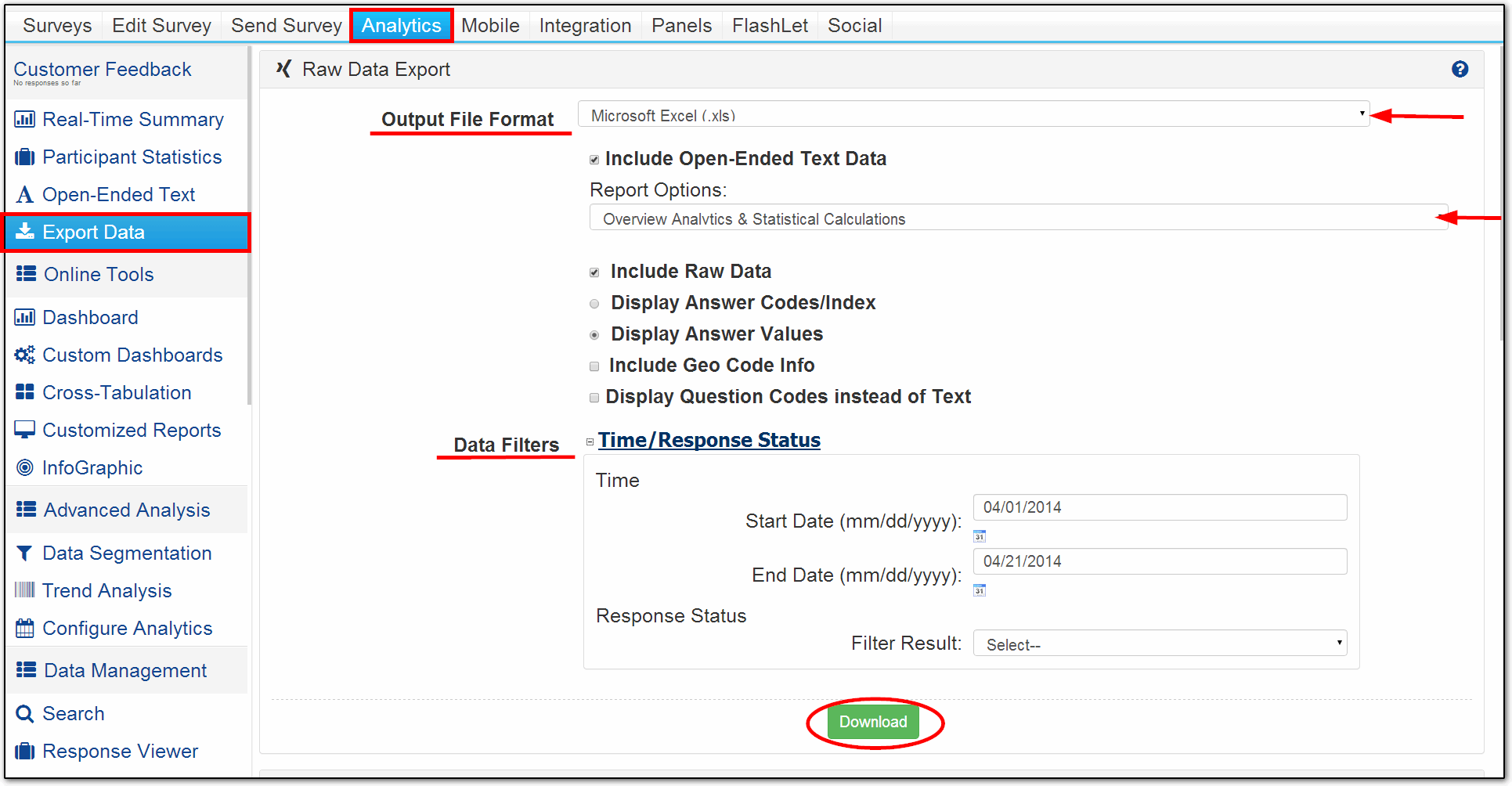
Following are the options available:
Include Open-Ended Text Data: When enabled Open-Ended Text Data is included in the file. This option is enabled by default.
Include Raw Data: A separate Raw Data sheet is included in the Excel file. This option is enabled by default.
Display Question Codes instead of Text: Check this option if your question has large amount of text or includes Images/HTML. Instead of Question Text Question Codes will be downloaded for easier understanding of the Reports.
Display Answer Values: By default answer option text / values are not included in the reports. To download answer option text enable this option.
Report Options: You can either download the entire data set along with analysis or only the Overview Analytics.
Data Filter - Time: You can filter the report based on time so data for only a particular time period is included.
Data Filter - Response Status: You can download data based on the Response Status.
Excel has certain limitations such as:
Column Limit: 255
Row Limit: 64k
cell contents (text): 1,024 Characters
In addition to this there are also other limitations because of which excel may be unable to load the file. The solution for this problem is to download a CSV-Raw Data file or the SPSS (.sav) file use that file.
Due to technical reasons we have limited the number of responses available in the raw data sheet to 10,000. If you have more than 10,000 responses please download a separate CSV-Raw Data file. CSV-Raw Data file will containg all responses.