You may also be interested in...
Criteria - Create | Manage | Edit - How to?
Action Alerts enables you to get notified immediately when someone answers in a particular way to your questions in your survey. For example, if you had a "Satisfaction" question and you would like send out an email to your Customer Service Manager, everytime someone chooses a low satisfaction score you could use the Decision Support System to do this.
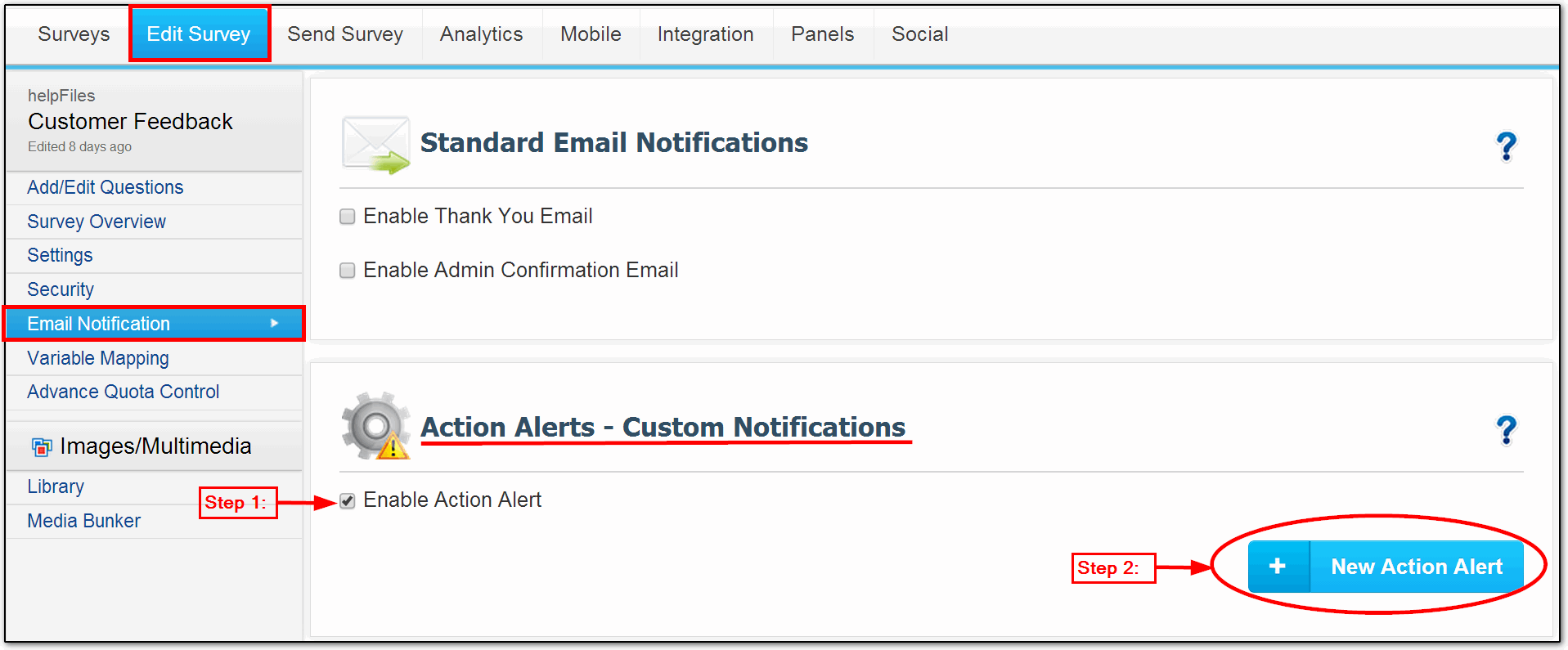
To start off with Action Alerts click on
1. If Action Alerts feature is not enabled, click on the "Enable" Button to Enable this feature on your survey.
2. Click on the New Action Alert Button for adding an Action alert to your survey.
1. Screenshot
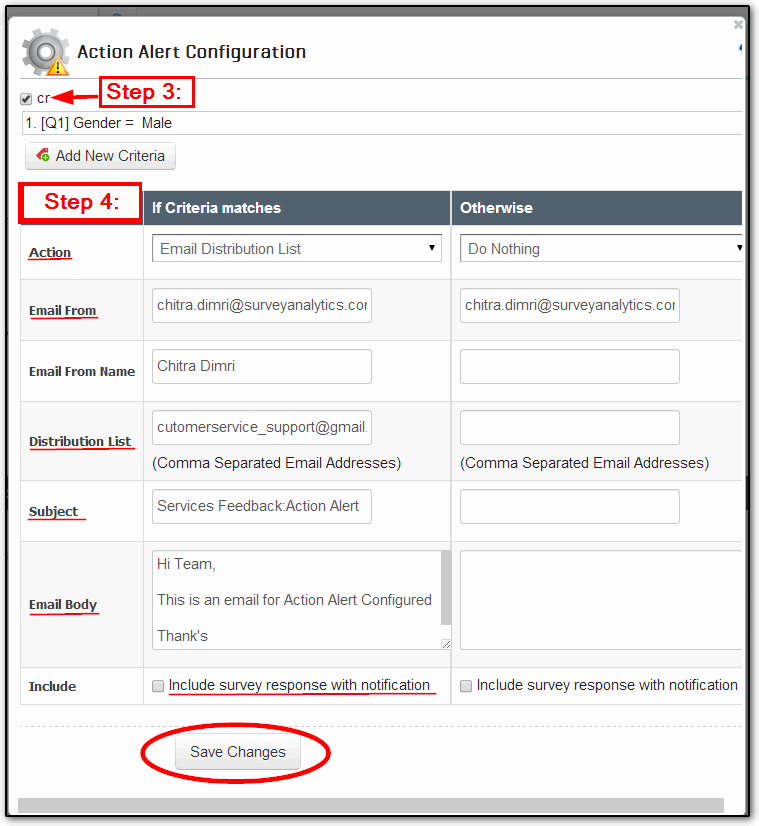
Now you have to enable a "Group" that defines the condition you are looking for. This is called the Rule Criteria. If there is no Criteria defined, then click on the Add New Criteria link to set up the required criteria.
3. Once at least 1 criteria is created, make sure that the criteria that you are interested in is enabled. This is done by checking the check-box next to the criteria.
4. After selecting the Criteria, you'll have to specify what exactly should happen after the criteria is met. This is done by completing the Action alert rule ie specify the Action, Email From, Subject and click on "Save Changes" button.
2. Screenshot
Test out the rule by previewing and taking the survey. Make sure you choose the options in the survey that trigger the group/rule and you should be getting emails depending upon what actions you choose!
Yes. SMS Text messaging is another way you can notify users of particular actions. Please see "SMS Messaging" below.
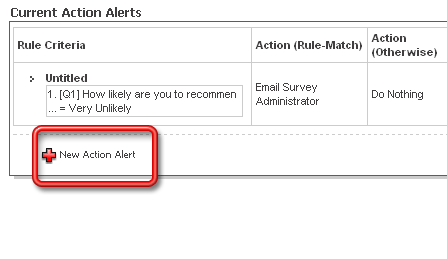
Yes. As of December 2007, we've enhanced the Action Alert mechanism to provide for multiple alerts and criterias for the same survey.
4. Screenshot
Criteria - Create | Manage | Edit - How to?